


Page 49 - MSDN Magazine, April 2018
P. 49
library can be easily referenced in .NET projects to reduce or elim- inate conditional compilation of the shared code. As a result, the .NET Standard Class Library can be implemented once and then referenced in various .NET projects, targeting Universal Windows Platform (UWP), .NET Core, ASP.NET Core, Xamarin.iOS, Xamarin.Android, Xamarin.Forms and so on without the need to recompile for each platform.
Here, I’ll show how to reuse common code in the watchOS app. For the Web service I’ll use the fake REST API server JSONPlace- holder (jsonplaceholder.typicode.com), which provides several resources, including the photos resource employed in the sample app. This resource stores a collection of fake pictures, each of which is represented as the following JSON object:
{
"albumId": 1,
"id": 1,
"title": "accusamus beatae ad facilis cum similique qui sunt", "url": "http://placehold.it/600/92c952",
"thumbnailUrl": "http://placehold.it/150/92c952"
}
Each photo has an associated id, photo album, title and two URLs pointing to a bitmap and its thumbnail. For this exercise, the bitmap is just a one-color image with a label showing the bitmap dimensions.
Everything you see here is created using Visual Studio for Mac. You can find the complete sample code for this project on GitHub at github.com/dawidborycki/Photos.
Parent App and Shared Code
The structure of a typical watchOS solution comprises three proj- ects (see apple.co/2GwXhrn and bit.ly/2EI2dNO). The first is the parent iOS app. Two other projects are dedicated to the watch app: Watch app bundle and WatchKit extension bundle. The parent iOS app is used as a proxy to deliver watch bundles to the wearable. The Watch app bundle contains interface storyboards. As is the case with iOS, developers use interface storyboards to define scenes and segues (transitions) between them. Finally, the WatchKit extension bundle contains resources and the app code.
Let’s start by creating the parent iOS app using the new Single View iOS project, which can be found in the New Project creator of Visual Studio for Mac. I set the project and solution names to Photos.iOS and Photos, respectively. After creating the proj- ect, I supplement the Photos solution by adding another project Photos.Common, which I create using the .NET Standard Library project template. This template is located under the Multiplatform | Library group of the New Project creator.
When you create the .NET Standard Library you’re given an option to choose the version of .NET Standard. This version determines the available API (the higher the version, the more functionality you can access) and supported platforms (the higher the version, the fewer supported platforms). Here, I set .NET Stan- dard version to 2.0, which already includes the HttpClient class to communicate with the Web service over HTTP. You can retrieve the list of APIs for each .NET Standard version using the .NET API browser at bit.ly/2Fl44Fa.
After setting up the common project, I install one NuGet package— Newtonsoft.JSON—which will be used to deserialize HTTP responses. msdnmagazine.com
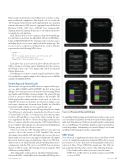
Figure 1 A Preview of the watchOS App
To install the NuGet package in Visual Studio for Mac, you proceed as you would in Visual Studio for Windows. In the Solution Explorer, right-click Dependencies | NuGet node and from the context menu choose Add Packages. Visual Studio displays a window, in which you search for packages. Alternatively, you can use Package Console and install the NuGet package from the command line.
REST Client
Now I’m ready to implement the client class for the Photos Web service. To simplify deserialization, I map the JSON object, shown previously, to a C# class. This can be done manually or with a ded- icated tool. Here, I’ll use JSONUtils (jsonutils.com). This Web site has an intuitive interface that consists of the following elements: • Class Name textbox where you enter your class name
• JSON Text or URL textbox, in which you place your JSON code or its URL
April 2018 43


